CatsandVR

The Future Iz Meow!

Google Daydream Labs Update- 6/28/2016

Daydream Labs have been experimenting with ways to reduce technical complexity and even add a greater sense of play when animating in VR. In one experiment they built, people could bring characters to life by picking up toys, moving them through space and time, and then replay the scene. Check out the latest updates from Daydream Labs

An app experiment from Daydream Labs. Instead of animating with graph editors or icons representing location, people could simply reach out, grab a virtual toy, and carry it through the scene.

To create more intricate animations, they also built another experiment that let people independently animate the joints of a single character. It let you record your character’s movement as you separately animated the feet, hands, and head — just like you would with a puppet.

An app experiment from Daydream Labs. Independently animate the joints of a single character.

Dark Days, a psychological thriller for Gear VR launches today.

Dark Days, Parallel Studio’s newest VR experience, immerses you in a creepy motel in the middle of Death Valley to solve puzzles while you fight for survival. Fans of escape-the-room puzzles and thrilling supernatural narrative have a new VR game to look forward to. 

Dark Days is as an excellent Gear VR title that mixes the weirdness of Twin Peaks with the unknown supernatural bumps in the night of The X-Files and the hide-and-seak game play of Amnesia. The game puts you in the role of heroine Jade Lacroix, a writer who checks into a very seedy motel filled with mystery. 

Adobe Premiere Pro Update makes working with 360° Video/VR much easier

Adobe Premiere just got a tremendous release that will make editing 360° video easier than ever. Right now the stitching and metadata workflow does not make edited 360° content the easiest thing to do. 

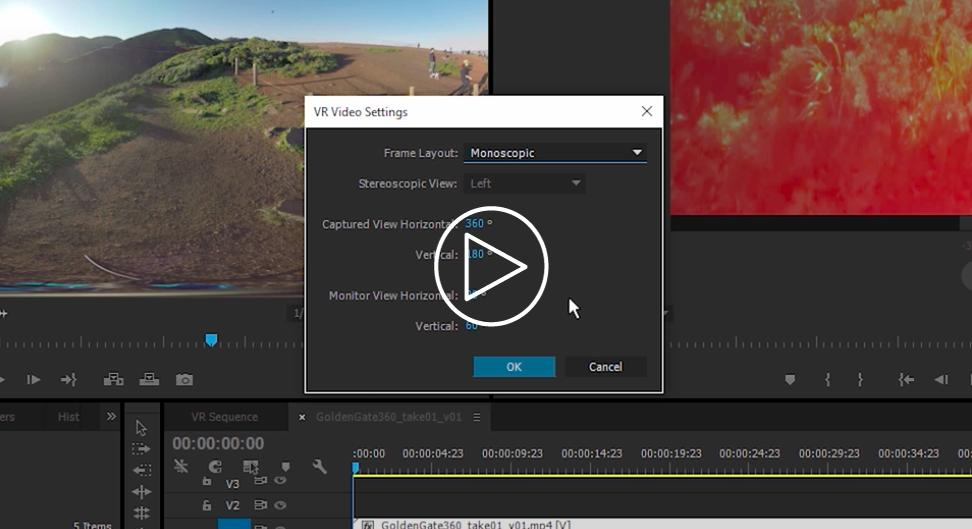
You can now work with different VR Video formats, up to a full sphere of 360 horizontal by 180 degrees vertical of captured view, along with Stereoscopic View - Left, Right and Anaglyph. You can choose a view from the left or right eye in stereoscopic video, or in a red/cyan anaglyph format. Premiere Pro also allows you to work with VR footage that was captured in less than a full 360 degree sphere of view. You can configure the field of view displayed in the monitor, which allows you to emulate different viewing experiences. For example, an Oculus Rift might display a 90 x 60 degree field of view, while YouTube displays a 160 x 90 degree field of view. The Program and Source monitors have their own individual VR Video settings, which are saved with the project.

VR Video Settings

After configuring the settings, choose “Enable” from the settings menu to turn on the VR Video display. When enabled, the Monitor displays an interactive field of view within the spherical projection. Horizontal and vertical sliders along the bottom and right edge of the video frame allow you to pan and tilt the field of view. Numerical values presented next to these sliders display the current degrees of pan and tilt. You can click and drag on these values to pan or tilt the view, or you can click on them to enter a numeric value directly.

360-degree panning

Use the dial at the bottom for 360-degree continuous panning, which indicates the direction of view. Double-clicking within the video frame will re-center the view.  Use either of these methods to change the view interactively during playback and while the video is paused. To return to the normal monitor display, open the monitor settings menu and uncheck the “Enable” option for VR Video. 

You may also toggle between enabling and disabling your VR Video display using a button which can be docked with the monitor’s playback buttons. Click on the “+” icon in the lower right corner of the monitor to open the Button Editor. Drag the “Toggle VR Video Display” button out of the editor and into the monitor panel to its desired location. This button toggles between normal monitor display and VR Video display.

Check Out the Adobe Premiere working with VR video link above. 

Publishing your VR Video

To publish your VR Video on popular websites like YouTube and Facebook, you must use H.264, HEVC or QuickTime formats when encoding the video. In the 'Export Settings' dialog, choose one of these formats, then select the 'Video' settings tab. Scroll down to check the 'Video is VR' check box and choose the layout which matches your media from the popup menu. Metadata added to the encoded video flags it as VR Video content for publishers to play back correctly.

The 'Stretch to Fill' scaling setting in the Export Settings dialog output typically gives the best results for most VR Video exports. Select the “Publish' settings tab in the Export Settings dialog to upload this video directly to websites like YouTube or Facebook.

More information

https://helpx.adobe.com/premiere-pro/using/VRSupport.html#ConfiguringthemonitorstodisplayVRVideo

Virtual Reality Pulse